
How to use an HDRI skybox in Enscape
- Enscape loads an HDRI through Visual Settings > Sky > Horizon: set the horizon source to Skybox and use Load Skybox from File.
- Since Enscape 4.19 (July 2026) the skybox loader reads .exr; Enscape 4.18 LTS and older need .hdr.
- The skybox provides background, reflections and ambient light; direct light and shadows still come from Enscape's own sun.
- Brightest Point as Sun Direction moves the Enscape sun to the brightest spot of the skybox, which is reliable only when the sun is unclipped.
- Enscape rotates a skybox only around the vertical axis and cannot tilt or scale it.
- For lighting, reflections and real-time walkthroughs, a 4K to 8K HDRI is enough.
Enscape's default sky is clean but generic. A real HDRI skybox adds photographed clouds, a believable horizon in glass facades and a sun direction that matches the background. This guide covers what the skybox controls in Enscape and what it leaves to Enscape's own sun, how to load and convert files, how to align sun and shadows, how to balance brightness and exposure for interiors and exteriors, and how to fix the usual problems. The settings were checked against Chaos documentation and release notes for Enscape 4.19 and 4.20 and apply in SketchUp, Revit, Rhino, Archicad and Vectorworks.
What the skybox drives in Enscape, and what it does not
Enscape treats a skybox as a textured sphere around the model. An HDRI loaded there changes four things:
- Background. The panorama replaces the built-in horizon in every direction.
- Reflections. Glass curtain walls, water and metal mirror the real clouds and horizon. On a facade this is usually the biggest visible gain.
- Ambient light. The skybox tints and brightens the light that fills shadows and rooms.
- Sun direction, optionally. With one option on, Enscape moves its sun to the brightest spot of the image.
The skybox does not replace Enscape's sun. Direct light and hard shadows still come from Enscape's own sun, which the skybox can only aim. The shadow edge is not traced from the photo, as it is in V-Ray, Corona or Cycles, where the HDRI itself is the light source. So an overcast sky does not give soft light on its own; you soften the sun yourself.
A .jpg or .png panorama works as a background, but it holds no values above white, so the sun is no brighter than a white cloud. For believable ambient light and reliable sun detection, load a real high dynamic range file.
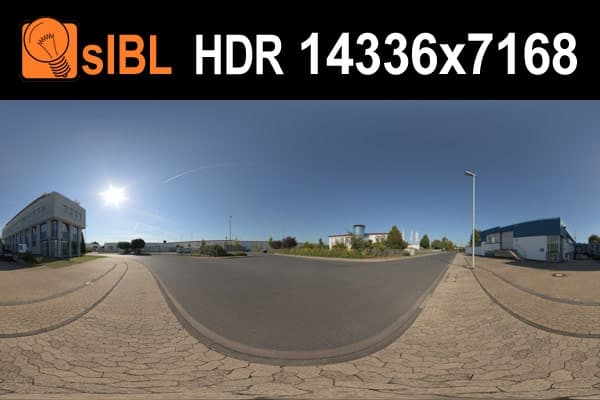
A street sky such as HDR 085 Road puts real buildings and trees into the reflections of a city facade, which no procedural sky can do.
Prepare the file
Enscape reads a longitude/latitude panorama with a ratio close to 2:1, or a cube cross at 4:3 or 3:4. Every HDRI Hub sky is a 2:1 panorama. Accepted types are .hdr, .bmp, .jpg, .jpeg, .png, .tif, .tiff and .tga. Since Enscape 4.19 (released 29 July 2026) the loader also reads OpenEXR (.exr). Offices on the 4.18 LTS release or older need .hdr.
HDRI Hub skies up to HDR 141 and all sIBL sets are Radiance .hdr and load in any Enscape version. Skies from HDR 142 onwards ship as .exr: load them directly in 4.19 or later, or convert them once for older versions. The product page lists each format; background in .hdr or .exr.
Converting .exr to .hdr for Enscape 4.18 and earlier
The conversion keeps the full dynamic range as long as the image stays in floating point and is not tonemapped.
- Blender: open the .exr in the Image Editor, choose Image > Save As, set the file format to Radiance HDR.
- Photoshop: open the .exr in 32-bit mode and save a copy as Radiance (.hdr) without reducing the bit depth.
- Affinity Photo: open the .exr and export as Radiance HDR.
This is also the moment to downsize a 16K or 20K file to 8192x4096 for real-time use. Keep skies in one library folder on a shared drive, because Enscape stores the file path.
Load the skybox
The Visual Settings dialog is the same in SketchUp, Revit, Rhino, Archicad and Vectorworks.
- Open Visual Settings from the Enscape toolbar.
- Go to the Sky tab and open the Horizon section.
- Set the horizon source to Skybox.
- Click the folder icon next to "Load Skybox from File" and pick the file.
The short version with the list of matching skies is on HDRI for Enscape. Once the sky looks right, save the Visual Settings as a preset with a clear name, for example "West facade, HDR 085, afternoon". The preset keeps rotation, brightness and exposure repeatable across views and colleagues.
Align the sun with the sky
Brightest Point as Sun Direction
Turn on "Brightest Point as Sun Direction" in the Horizon section. Enscape places its sun on the brightest spot of the skybox, so shadows fall away from the sun you see in the background. With the option off, the sun position comes from the host application, for example SketchUp's shadow settings or Revit's sun settings, and rarely agrees with the clouds.
The option is only as good as the file. If the sun was clipped during capture, the sun disc has the same value as a bright cloud edge or a white wall, and Enscape may pick the wrong spot. In an unclipped HDRI the sun disc keeps its real, much higher brightness, so detection is reliable. HDRI Hub has 34 outdoor skies with an unclipped sun, for example HDR 145 Rural Road Clear Sky and HDR 168 Sea Harbor Sunny. The reasons are explained in unclipped HDRI sun and shadows.
In a city night HDRI the brightest point is usually a street lamp. Turn the option off for night scenes and light them with Enscape's artificial lights.
Rotation
The Rotation slider turns the skybox around the vertical axis only. Enscape cannot tilt or scale a skybox, so the horizon in the file must be level and the camera height of the photo should match your view. A sky shot at road level looks wrong behind a bird's eye view.
Set the camera first, then rotate the sky; with Brightest Point on, sun and shadows rotate with it. Light that hits the main facade roughly 30 to 60 degrees off the camera direction shows depth: one face in sun, one in shade, readable window reveals.
Softer or harder shadows
The shadow edge does not follow the sky automatically. Visual Settings has separate controls for sun brightness and shadow sharpness. For an overcast or hazy HDRI, lower the sun brightness and soften the shadows. For a clear unclipped sky, keep them crisp. If a sunny render looks burned out, lowering the sun brightness is often better than darkening the whole skybox.
Brightness, normalisation and exposure
Two controls in the Horizon section set how much light the skybox emits.
- "Normalize the average brightness to the value set below" rescales the skybox's light emission to fit Enscape's sun brightness, so a noon sky and an evening sky light the model at a similar level. Use it as the starting point for exteriors; switch it off when a dark sky should stay dark.
- Brightness scales the skybox up or down. It is the tool for a sky that looks too bright behind the building or through a window. Lower it a little for dawn and evening skies so they do not read as midday.
Auto Exposure adapts the image to what is on screen, like a camera in automatic mode, so a large bright sky darkens the building. For stills and animations that must match, turn Auto Exposure off, set Exposure Brightness by hand and save it in the preset. Ambient Brightness and Auto Contrast are finishing tools; use them after sky, sun and exposure are set.
Interiors and exteriors
Exteriors. Turn on normalisation and Brightest Point as Sun Direction, set exposure by hand, and let the sky set the mood. The sky is large in frame, so resolution and the match between site and sky matter most.
Interiors. A dark interior is rarely a skybox problem. Usual causes are an open model (a missing ceiling lets the sky flood the exposure), very dark materials, or Auto Exposure reacting to bright windows. Fix geometry and materials first, then exposure, then add lights. To keep the window view from blowing out, lower the skybox Brightness and raise the exposure, the same balance a photographer strikes between window and room. For window views, pick skies with a low, calm horizon such as trees or distant buildings.
Choosing a sky for Enscape
The full decision process is in how to choose an HDRI. For Enscape, three points carry extra weight.
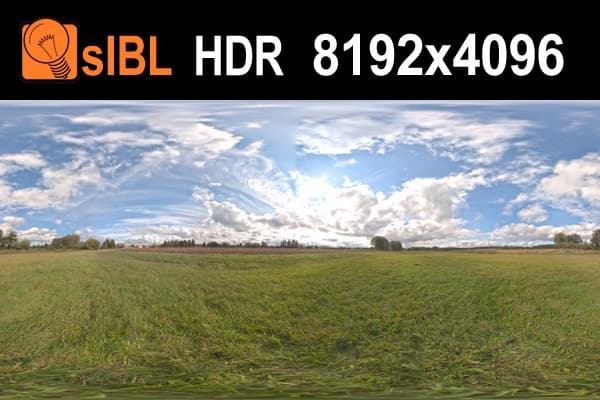
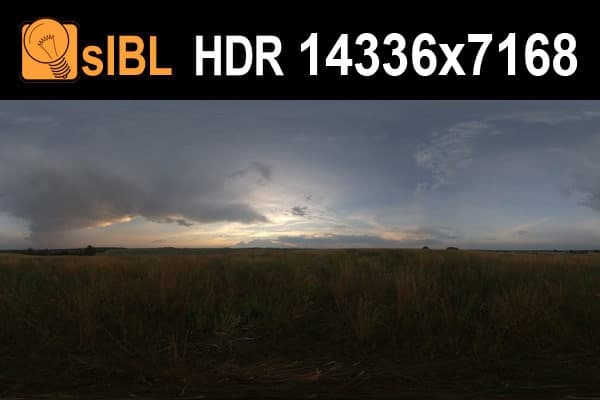
Weather sets the story. A clear sky with an unclipped sun gives crisp shadows for competitions and marketing. A partly cloudy sky such as HDR 029 Sky Cloudy is the most forgiving default. A heavy sky such as HDR 059 Storm Clouds gives drama and strong facade reflections. A low sun such as HDR 063 Dawn suits evening stills with interior lights on.
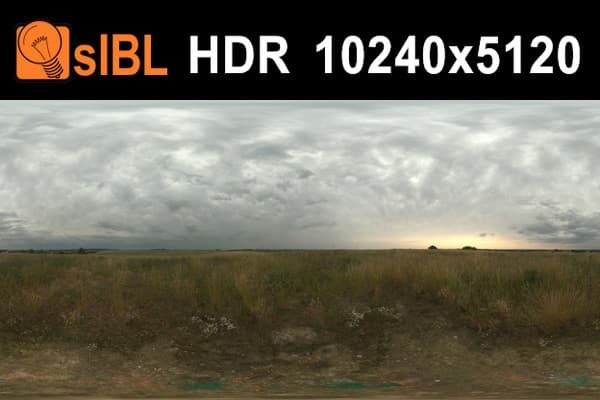
Reflections must match the site. A rural field mirrored in an inner-city office tower gives the render away. Use street and city skies for urban sites, field and road skies for residential and rural ones.
Camera height must match. Since Enscape cannot tilt a skybox, pick a sky shot near your camera height: street level for street views, open ground for elevated views.
Resolution for a real-time engine
Lighting does not depend on resolution: a 4096x2048 sky lights the model the same as a 20000x10000 sky. For lighting, reflections, walkthroughs and VR, 4K to 8K is the right size, and HDRI Hub's free files up to 8192x4096 cover it.
Larger files help only when the sky is clearly visible in a high-resolution still and the graphics card can hold the texture. Chaos publishes no fixed pixel limit for skyboxes, but Enscape support has explained that a skybox too large for GPU memory gets downscaled and looks blurry. Keep an 8K version for live presentations and try 10K to 16K only for final stills where the sky fills much of the frame. Details in the HDRI resolution guide.
Troubleshooting
| Problem | Likely cause | Fix |
|---|---|---|
| Skybox file not accepted | .exr in Enscape 4.18 or older, or wrong aspect ratio | Update to 4.19+ or convert to .hdr; use a 2:1 panorama |
| Shadows do not match the sky | Sun comes from the host app, or the sun is clipped | Turn on Brightest Point as Sun Direction; use an unclipped sky |
| Sun sits on a lamp or bright cloud | That spot is the brightest pixel | Use an unclipped sky, or turn the option off and set the sun manually |
| Scene washed out | Sky emission or sun too strong, Auto Exposure | Enable normalisation, lower Brightness or sun brightness, set exposure by hand |
| Interior too dark | Open model, dark materials, bright window in frame | Close the model, check materials, set exposure by hand, add lights |
| Horizon tilted or building floats | No tilt in Enscape, camera height mismatch | Pick a level sky shot at a similar height; add ground and landscape |
| Sky looks blurry | File too small, or downscaled for GPU memory | Larger file for stills; 8K to 10K for real time |
| Look changes between views or users | Settings not saved, sky on a local path | Save a Visual Settings preset; keep skies on a shared drive |
Test with a free sky first
Load one of the free HDRIs for Enscape and work through the steps above before buying. Free files carry the same licence as paid ones. When the setup works, HDRI for Enscape lists every outdoor sky with its resolutions and format.
Frequently asked questions
How do I add an HDRI in Enscape?
Open Visual Settings, go to the Sky tab, set the horizon source in the Horizon section to Skybox and click the folder icon next to Load Skybox from File. Pick a 2:1 panorama in .hdr, or .exr in Enscape 4.19 and later. The steps are the same in SketchUp, Revit, Rhino, Archicad and Vectorworks.
Does Enscape support .exr skyboxes?
Yes, since Enscape 4.19, released in July 2026, as long as the file uses a supported layout. Enscape 4.18 LTS and older need .hdr, so convert the file once in Blender, Photoshop or Affinity Photo while keeping it in 32-bit float.
Why don't my Enscape shadows match the HDRI sky?
Without Brightest Point as Sun Direction, Enscape takes the sun from the host application and ignores the sun in the sky. Turn the option on and rotate the skybox. If shadows still point the wrong way, the sun in the file is probably clipped and another bright spot wins; an unclipped HDRI fixes that.
How do I make an Enscape skybox less bright?
Lower the skybox Brightness slider in the Horizon section, or enable the option that normalises the average brightness to the sun. If the whole image is too bright, turn off Auto Exposure and set Exposure Brightness by hand.
Can I use a normal 360 degree JPG as an Enscape skybox?
Yes, Enscape accepts .jpg, .png and other 8-bit formats as a background. They hold no values above white, so the ambient light is flatter and sun detection unreliable. Use .hdr or .exr when the sky should light the scene.
What resolution should an Enscape skybox have?
4K to 8K for lighting, reflections, walkthroughs and VR, because resolution does not change the lighting. Larger files help only for stills in which the sky fills much of the frame, and a skybox too big for the graphics card memory gets downscaled.
Can I use HDRI Hub skies in commercial client projects?
Yes. Every HDRI Hub sky, including the free files, carries a commercial licence for one user and one workstation, which covers renders for clients, competitions and marketing.
Sources
- Skybox as Background (Enscape for SketchUp, Chaos Docs)
- Enscape Release Notes: 4.19.0 Windows
- Enscape Release Notes: 4.20.0 Windows
- Lighting for Revit (Enscape, Chaos Docs)
- Sun, Geolocation, and Time of Year (Enscape, Chaos Docs)
- HDR and Skybox Images are huge and blurry (Chaos Forum, Enscape staff answer)